
Text My Wedding RSVPs are household-based: one invitation link lets a guest respond for everyone included in that party.
Prepare households first
In Guests, use the party of … link to put couples, children, and plus-ones sharing one invitation into the same household. A party member can have no phone and still appear in the RSVP headcount; at least one reachable member should have a valid phone.
Create and send a form
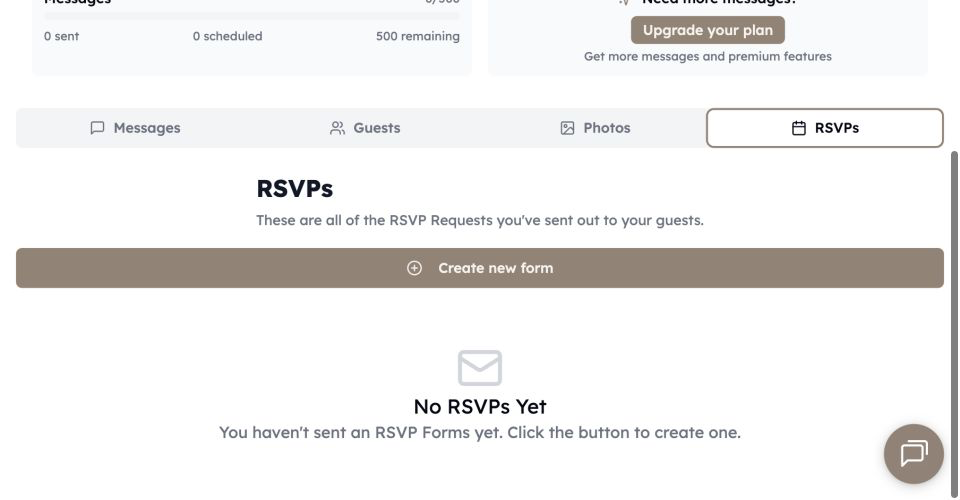
- Open the event dashboard and choose RSVPs.
- Choose Create new form.
- Complete the Create RSVP Form fields for the event name, date, start and end time, venue, and address.
- Optionally add an invitation photo.
- Choose the groups that should receive invitations.
- Choose Send Invitations.
Each selected household receives its own private link and sees only its invited members.
Track and correct responses
Open the RSVP to see attending, not attending, and no-response totals. Search or filter the list, expand a household, and update an individual status when someone responds another way.
Use Add Guests for late invitations and Resend Invite for a household that needs its link again. Resending does not erase existing responses.
Remind nonresponders
Choose Send Reminder, select a group, and keep the RSVP link in the reminder. The RSVP workflow targets invited households still needing a response. Check the eligible count and message-limit warning before sending.
Export
Use Export Responses to download a CSV of households, members, and attendance statuses. Compare the file with the totals shown in the app before giving final numbers to the venue or caterer.